🎞️ Playout
Channels · CG · Schedule
Playout
Broadcast playout automation — file playback, live inputs, CG graphics overlay, scheduling and multi-format outputs. Each channel runs its own independent encoder.
Signal Flow
Each channel has a dedicated FFmpeg encoder (NVENC GPU encode). The TEE muxer feeds all outputs simultaneously — UDP/SRT/RTMP outputs, HLS preview and the WebRTC program monitor share one encode.
Channels
Multiple independent channels, each with its own playlist, encoder and outputs
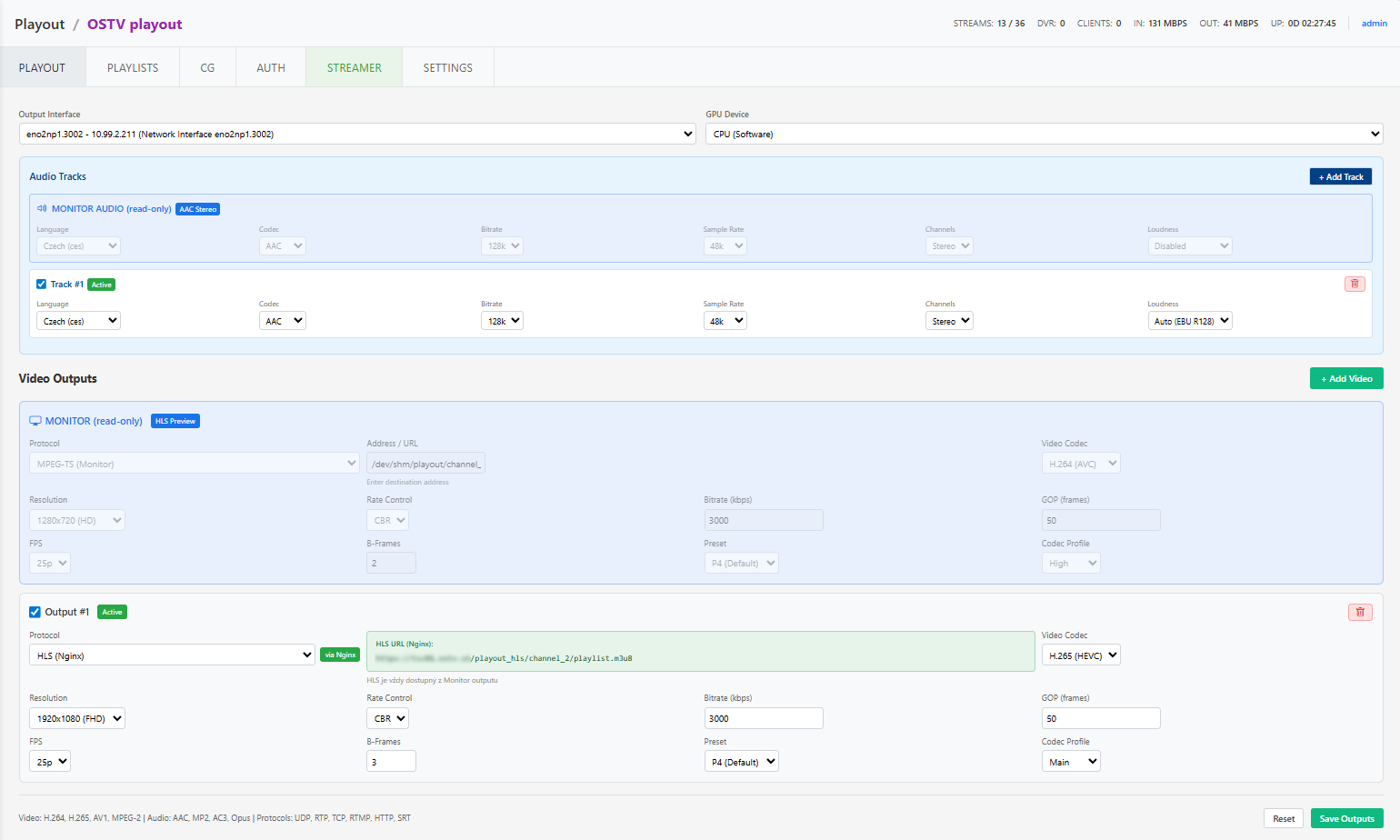
Output resolution, frame rate and audio format per channel
Multiple simultaneous outputs (UDP, SRT, RTMP) via TEE — one encode, many destinations
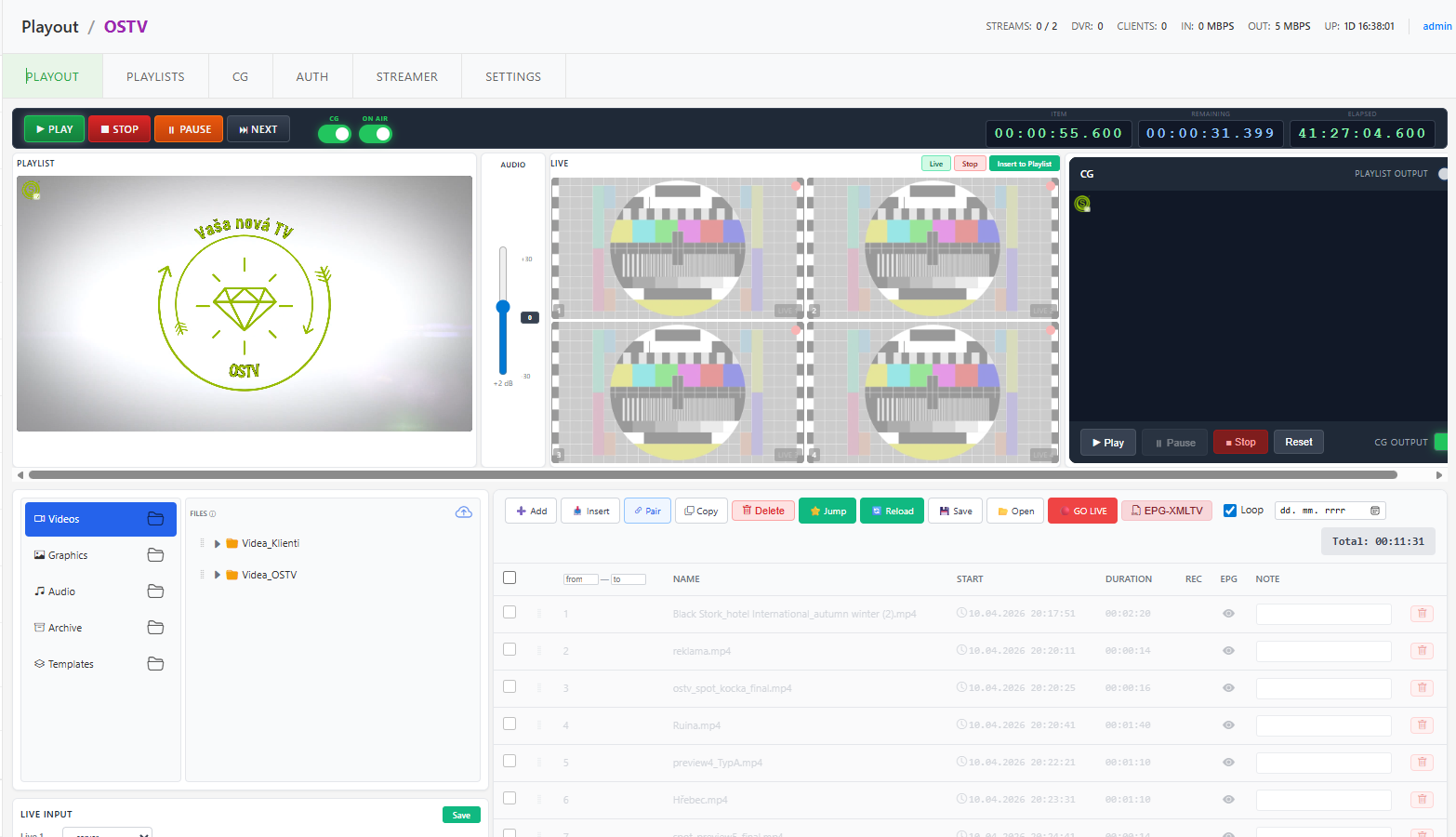
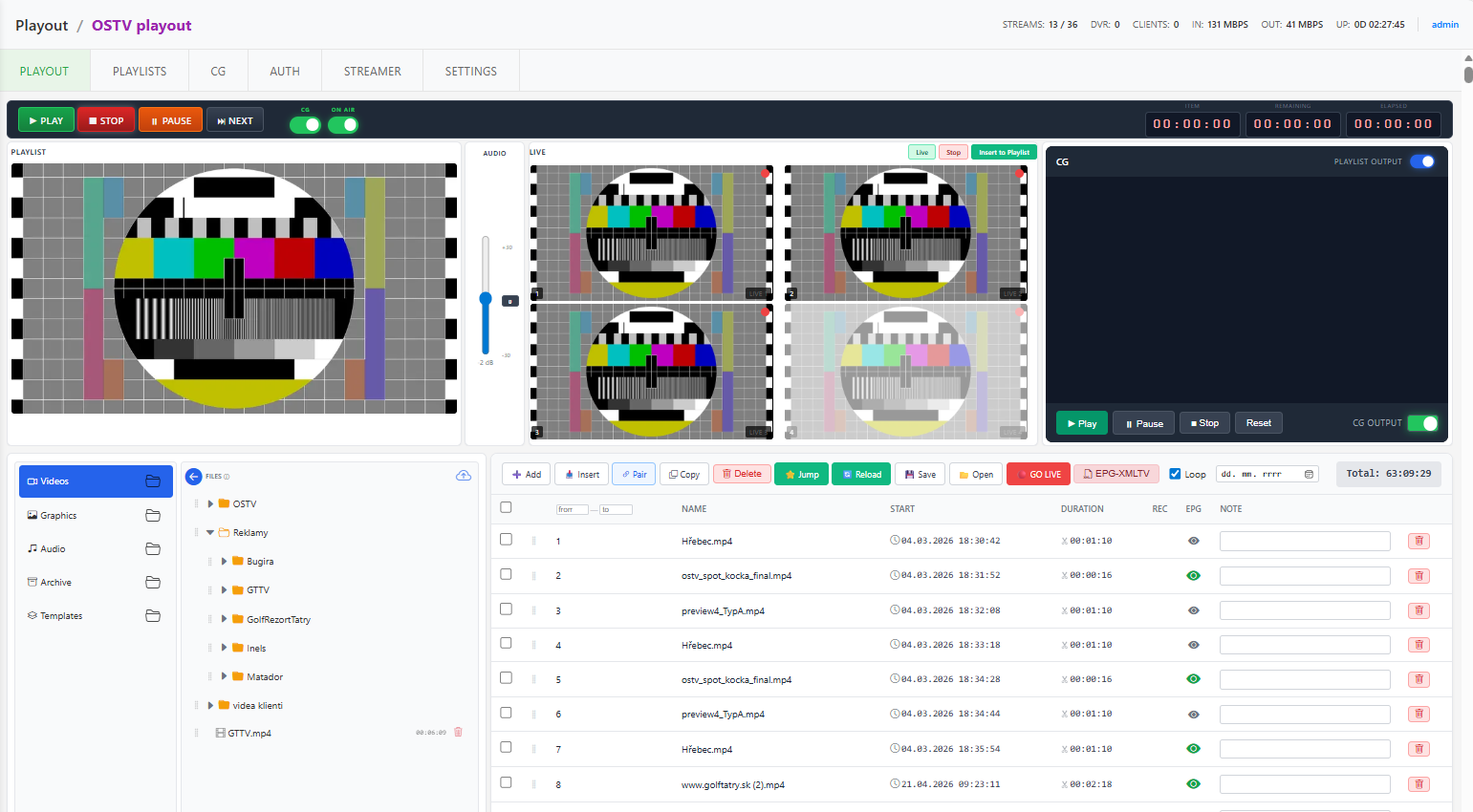
Transport bar: PLAY / STOP / PAUSE / NEXT, item and total timers
CG and ON-AIR indicators visible on every tab
Playlist
Drag & drop editor — drop or move inserts above the focused row
Item types: media files from the library and live inputs (HLS/UDP/SRT)
Per-item trim: start offset + duration — following start times recalculate automatically
Loop mode for continuous 24/7 playback
Computed start/end times for every item; temp editor for batch changes
Trimmed items
A yellow duration cell marks an item that plays shorter than its full file length. The tooltip shows the original duration and start offset. Scissors icon opens the trim editor.
Media Library
File browser with folders, multi-select and delete
Upload via dialog or drag & drop — progress modal with per-file status
Uploads can be minimized to a floating widget and keep running in the background while you work
Files are normalized to the house format (uniform timescale, color space) for glitch-free playback
Eye icon previews a file before adding it to the playlist
Live Inputs
HLS, UDP and SRT sources as reusable live input definitions
A live input is a playlist item like any other — switch between files and live
Fixed duration or manual NEXT to leave a live segment
Elements
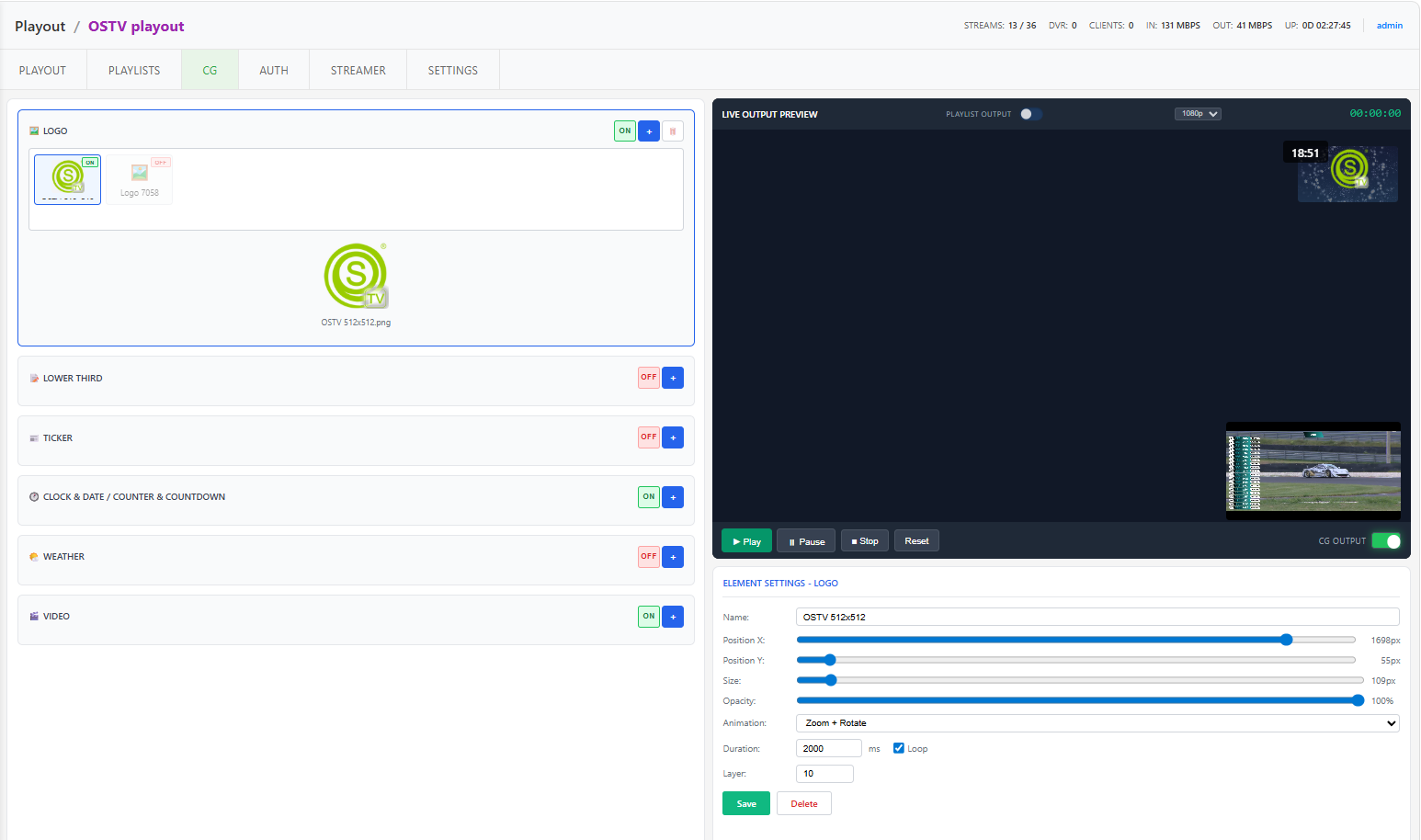
Text, logo, ticker/crawl, clock, lower thirds, video overlay, weather
CG templates are per-channel; each element has its own properties (position, size, animation, timing)
Master CG switch + per-element toggles; preview reflects the on-air state
CG Profiles
Named profiles override element properties per profile — e.g. a clean feed and a branded feed
Switching the on-air profile re-renders the overlay
Secondary events in the schedule can activate a CG profile or item automatically
Live CG (no restart)
With live CG enabled in channel config, toggling CG switches the overlay instantly inside the running encoder — no output interruption. Without it, CG changes restart the encoder (short glitch).
Audio
Stereo LED level meters (L/R) live from the program output
Master volume — drag on the meter card
AUTO loudness normalization (EBU R128) per channel
Scheduler
Opt-in per channel (enable in Settings); manual transport keeps working
Rules: daily, weekly (per weekday) or one-time date
Channel time zone aware, handles playlists crossing midnight
Priority resolves overlapping rules
Autostart option launches the scheduled playlist after a server restart
Program Monitor
Low-latency WebRTC (WHEP) program monitor directly in the browser
Sticky preview row stays visible at the top while editing
EPG
Block EPG — programme titles generated from the playlist
EPG dialog closes only via X / OK / Cancel (no accidental close)
SRT output:
Address format
e.g.
Client reads via
Limits & notes
GPU is used for encoding only; decode/filters run on CPU
Heterogeneous sources are normalized on upload — do not bypass the media library for playlist files
Without live CG, every CG change restarts the encoder (short output glitch)
CG Overlay
Channels
Outputs
Playlists
Signal Flow
Broadcast playout automation with file playback, live switching, CG overlay, and scheduling. Access via /playout.
Signal Flow
Channels
Multiple independent channels
Output resolution & audio format per channel
Multiple simultaneous outputs (UDP, SRT, RTMP)
Master volume control
Playlists
Drag & drop playlist editor
Loop mode (continuous)
File items (video/audio from media library)
Live input items (HLS/UDP/SRT sources)
Schedule-based auto-switching
CG Overlay
HTML/CSS-based CG templates
Logo overlay, lower thirds, tickers
Chromium-based rendering
Real-time preview
Per-element show/hide control
Outputs
UDP multicast (IPTV network)
SRT (remote mediamtx / contribution)
RTMP (YouTube, Twitch, etc.)
HLS (web player)
Multiple outputs simultaneously
SRT Output:
Automation & Live Graphics
Audio Metering & Loudness
Stereo L/R LED level meters next to the program preview show the live output level. Drag the meter vertically to set the on-air master volume (drives the streamer level).
The AUTO checkbox enables EBU R128 auto loudness (loudnorm) on the output — it normalizes the level automatically instead of the manual gain.
Automation: Scheduler
Enable per channel in Settings → Automation (opt-in). The scheduler switches the channel's playlist by time (daily / weekly / one-off), evaluated in the channel timezone; the highest priority wins. Auto-start can start a stopped channel when a schedule begins.
Add schedules in Settings → Schedule (playlist, recurrence, day/date, start–end time, priority).
Live CG (instant toggle)
Enable in Settings → Graphics. With Live CG on, the CG overlay turns on/off instantly via ZeroMQ without restarting the encoder (no seam). It uses the cg.pipe renderer (text/logo/ticker). Restart playback after changing the option.
This is also the real fix for stale CG lingering in the preview after turning CG off.
Transport Bar & Preview
Transport controls (Play/Stop/Pause/Next, CG and ON-AIR toggles, timers) live in the tab strip; the active button is highlighted and the total-elapsed timer turns light blue while playing.
The preview row is frozen at the top while the lists below scroll.
Secondary Events & SCTE-35 Ad Breaks
Each playlist item can carry secondary events — graphics or ad cues fired at an offset within that item. Open them from the purple clapper icon next to the EPG eye. Types: CG show/hide (needs live-CG mode) and SCTE-35 ad out/in. A duration auto-pairs the matching hide/return.
Fire an ad break live from the transport bar: the SCTE AD presets (15/30/60/120s) or a custom length emit a SCTE-35 CUE-OUT into the HLS output immediately; a red countdown badge shows the remaining time and RETURN ends it early (CUE-IN).
The Item / Remaining / Elapsed timers sit in the top breadcrumb bar: Item is green, Elapsed is dark blue, Remaining flashes red under 10 seconds.